
Components
Components
Any layout can become a component: a box you can place in other layouts, as many times as you like. Edits to the component’s layout update every place it’s used.
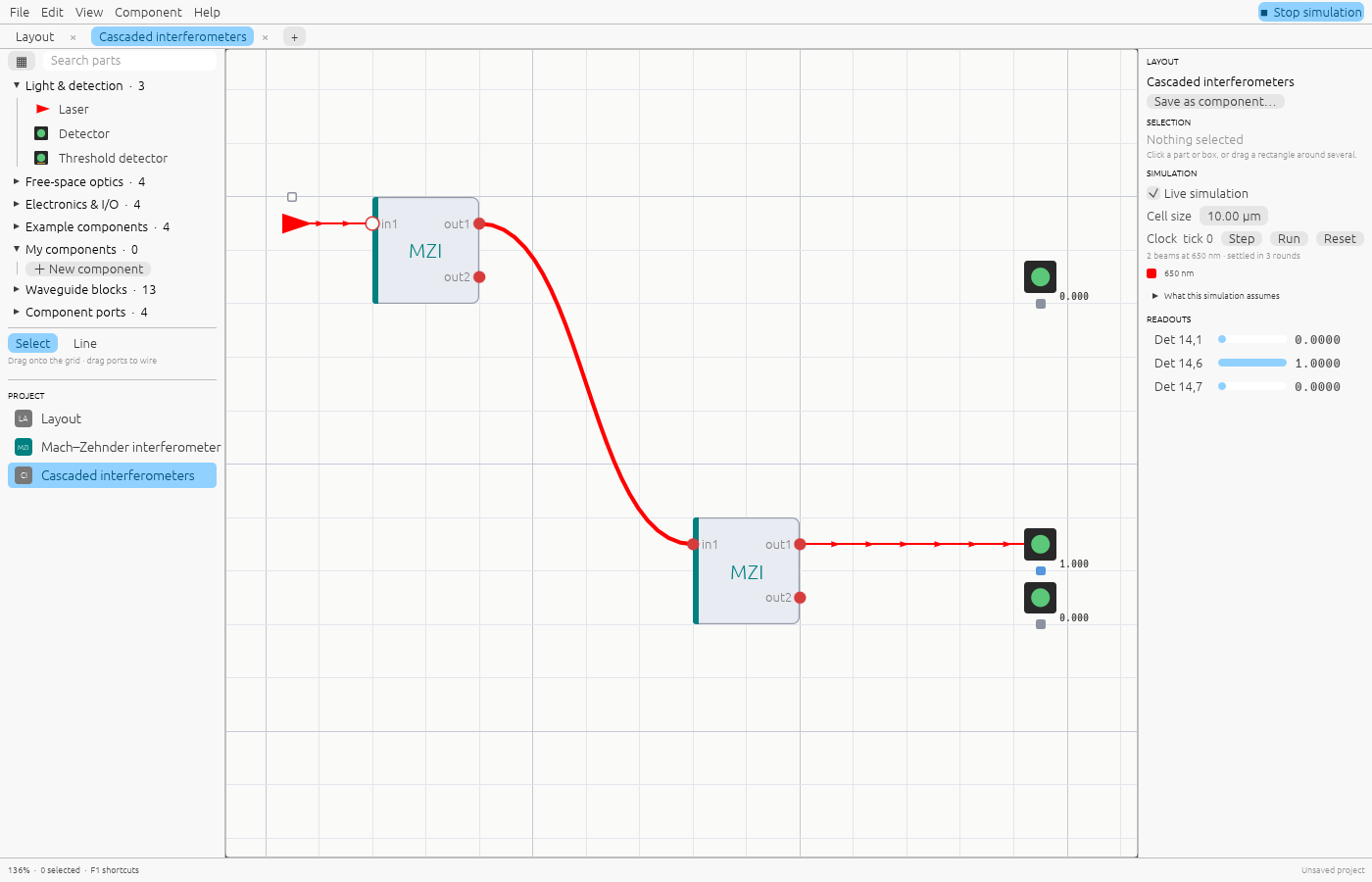
Making one
- + New component (library → My components, the parts browser, or the + tab button) creates a component with one light input and output and one signal input and output, and asks for its name, initials and description.
- Or turn any open layout into one: Component → Save as component…
The box shows the initials; hovering it shows the description and its ports.
Ports and pins
What the box exposes comes from port parts inside the layout:
| Inside the layout | On the box | Order |
|---|---|---|
| Input port | light input, left edge | top to bottom |
| Output port | light output, right edge | top to bottom |
| Signal in | signal terminal, top edge | top to bottom, then left to right |
| Signal out | signal terminal, bottom edge | top to bottom, then left to right |
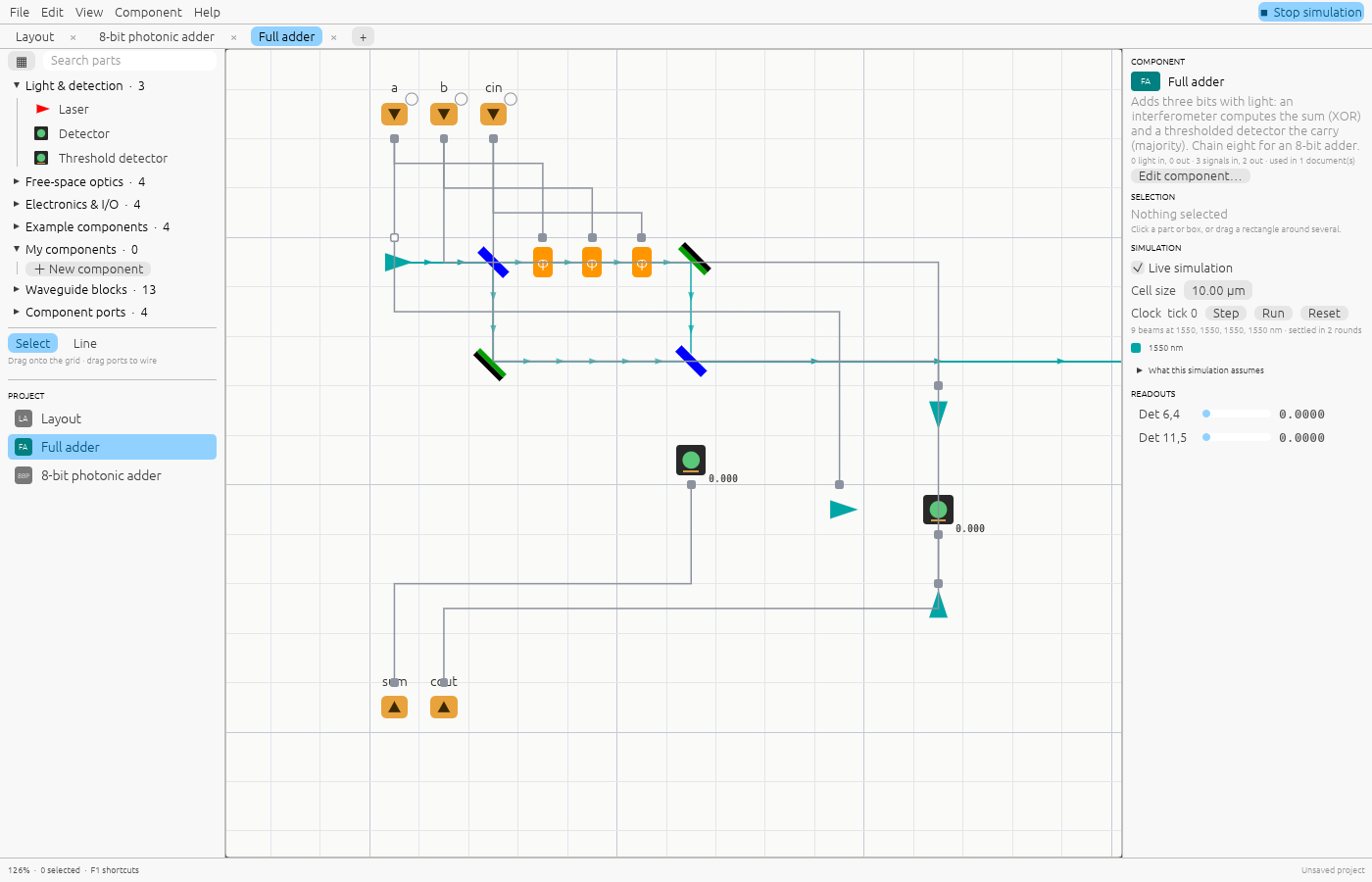
Name each port in the inspector (for example a, b, cin); the names show on the box
and in tooltips. Without names they are in1…, out1…, s1…, q1….
An Input port injects light travelling in its arrow’s direction; an Output port reads the light that reaches it. Signal in outputs the value arriving at the box; Signal out takes a value and passes it out of the box.
Opening a component
Select a box and press Tab, or double-click it, to open its layout in a tab. The inspector shows where it’s used. You can’t place a component inside itself, directly or through other components.
Trying a component on its own
In a component’s own tab nothing drives its Signal in pins, so they read 0. Click a Signal in pin to switch it between 0 and 1; a lamp next to it shows the value and the simulation follows. This lets you test, for example, the Full adder’s truth table without building anything around it. These test values aren’t saved and don’t affect the component where it’s used.
Managing components
In the Project list (left, below the library), right-click a document to open, rename, edit its component details, or delete it. Component → Stop sharing as component turns it back into a plain layout. A component that is still used somewhere can’t be deleted or unshared until its boxes are removed.