
Editing
The controls follow Blender’s conventions. Press F1 (or ?) in the app for the full list.
The grid
Everything sits on a square grid. Free-space parts (lasers, mirrors, detectors…) take one cell and are drawn as themselves. Built-in blocks and components are boxes that take several cells: light ports on their left and right edges, signal terminals on the top and bottom edges. The cell size (Inspector → Simulation, 10 µm by default) sets the physical distance light travels between cells, which matters for interference.
Adding parts
There are four ways, all placing into the cell you point at:
- Drag a row from the library onto the grid.
- Click a library row, then click the grid (repeat to place more; Esc stops).
- Shift+A (or right-click empty space) opens the add menu at the cursor.
- The parts browser (▦ next to the library search).
The library
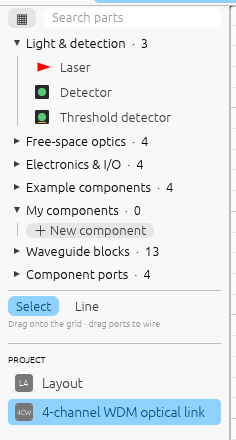
Parts are grouped into folders: Light & detection, Free-space optics, Electronics & I/O, Example components, My components, Waveguide blocks and Component ports. Click a folder to open or close it. Typing in the search box shows matching parts from every folder in one list.
The add menu
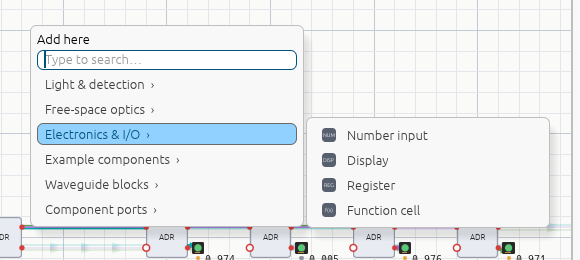
Hover a category to open its parts beside it, then click one. Or just start typing: the menu turns into a search, and Enter adds the first match. Scrolling over the menu scrolls the menu, not the grid. Esc or a click on the grid closes it.
The parts browser
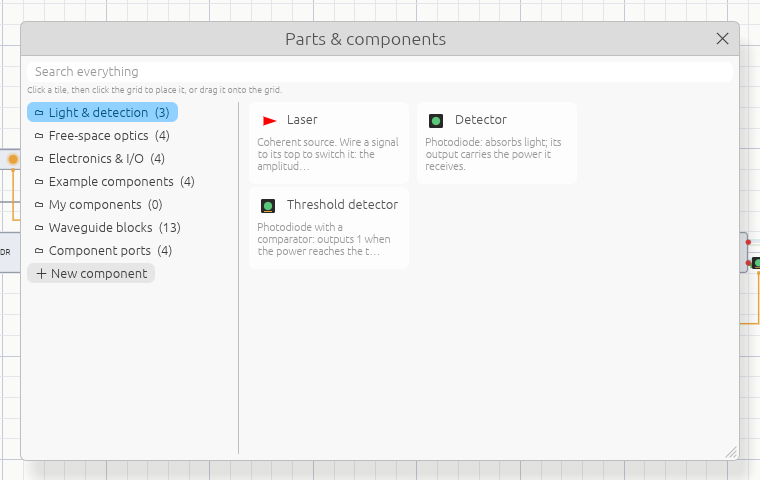
The browser shows every part as a tile with its description, folder by folder. Click a tile and then click the grid, or drag the tile onto the grid. + New component starts a component.
Selecting, moving, deleting
- Click selects; Shift+click adds or removes; drag on empty space draws a selection box. Clicking a waveguide or signal wire selects it.
- Drag a part or box to move it, or press G and move the mouse (X / Y lock the axis, click or Enter confirms, right-click or Esc cancels). Parts can’t be dropped onto occupied cells.
- R / Shift+R rotate lasers by 90° and mirrors and splitters by 45°. Double-clicking a part rotates it too.
- Shift+D duplicates the selection (with the wires between the copies) and starts moving it.
- X or Delete removes the selection, or the selected wire.
- Ctrl+Z / Ctrl+Shift+Z undo and redo.
Navigating
- Wheel or pinch zooms at the cursor; trackpad scrolling and middle-drag pan; Ctrl+wheel / Shift+wheel pan sideways / up and down; Ctrl+middle-drag zooms.
- Home frames everything; . (period) frames the selection.
Preferences
Edit → Preferences… sets how Shine looks and behaves, and is remembered between sessions (a settings file on desktop, the browser’s storage on the web):
| Setting | Options |
|---|---|
| Theme | System, light or dark |
| Grid, port names | Show or hide the grid and the names on component boxes |
| Light colours | Real colours where visible (infrared and ultraviolet in distinct false colours), a distinct colour per wavelength, or one colour; use lasers’ own colours |
| Channels | Draw each wavelength on a waveguide or beam as its own strand |
| Beams, readings | Direction arrows; detector powers on the canvas |
| New lasers | Their wavelength, typed or from presets |
| Simulation | Live simulation for new documents; clock speed |
Keyboard and mouse reference
| Keys | Action |
|---|---|
| Middle drag / Shift+Middle drag | Pan |
| Ctrl+Middle drag | Zoom |
| Wheel / pinch | Zoom at cursor |
| Trackpad scroll | Pan |
| Home | Frame all |
| . (period) | Frame selected |
| Left click | Select |
| Shift+Left click | Extend / toggle selection |
| Left drag on empty space | Box select (Shift extends) |
| Left drag on component | Move it |
| Double click | Rotate a part / open a component |
| Click a number’s bit | Toggle that bit |
| A / Alt+A / Ctrl+I | Select all / none / invert |
| G | Grab (move); X / Y constrain axis |
| Enter / Left click | Confirm grab |
| Esc / Right click | Cancel grab |
| R / Shift+R | Rotate clockwise / counter-clockwise |
| Shift+D | Duplicate and move |
| X / Delete | Delete selected |
| Shift+A / Right click | Add menu / context menu |
| Tab / Double click | Open a component’s definition in its own tab |
| Drag from a port or terminal | Wire it: light ports take waveguides, square terminals take signals |
| Ctrl+Z / Ctrl+Shift+Z | Undo / redo |
| Space | Toggle simulation |
| T / N | Toggle toolbar / properties |
| Ctrl+N / Ctrl+O / Ctrl+S | New / open / save |
| F1 / ? | This help |